Employee Help
Employee Portal Steps
Use these sections for Login, Edit Employee, Forgot Password, and Create Employee. Each section has the screen and direct link.
Employee Login
Use this when the employee already has login credentials.
- Open Employee Login.
- Enter the registered employee email.
- Enter the employee password.
- Click Verify & Update Employee.
- The portal opens the Employee Edit page.
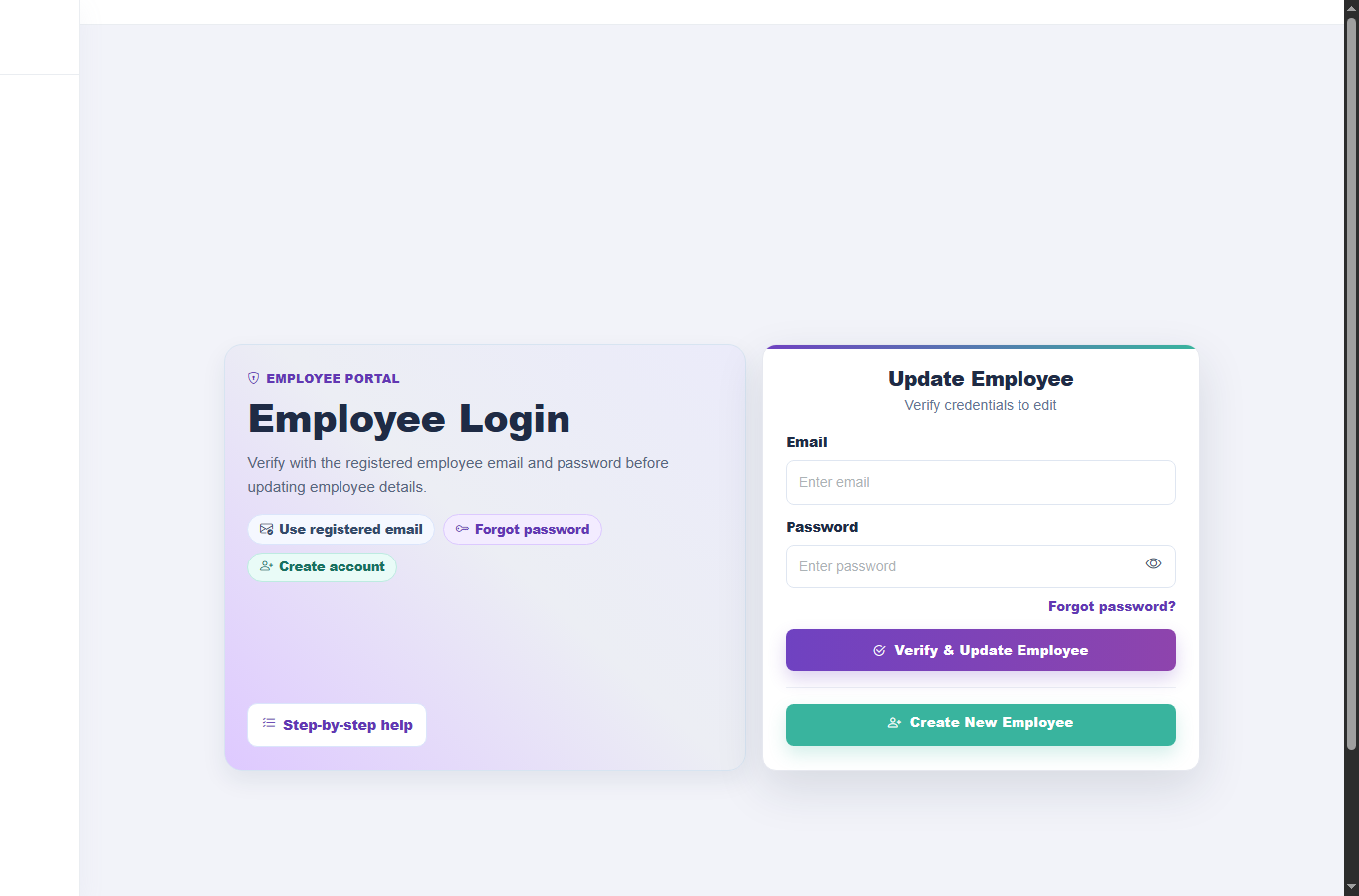
Employee Login screen
After Login: Edit Employee
This is the page the employee sees after the login is verified.
- Review employee information.
- Update required fields.
- Upload or change documents if needed.
- Save the employee profile.
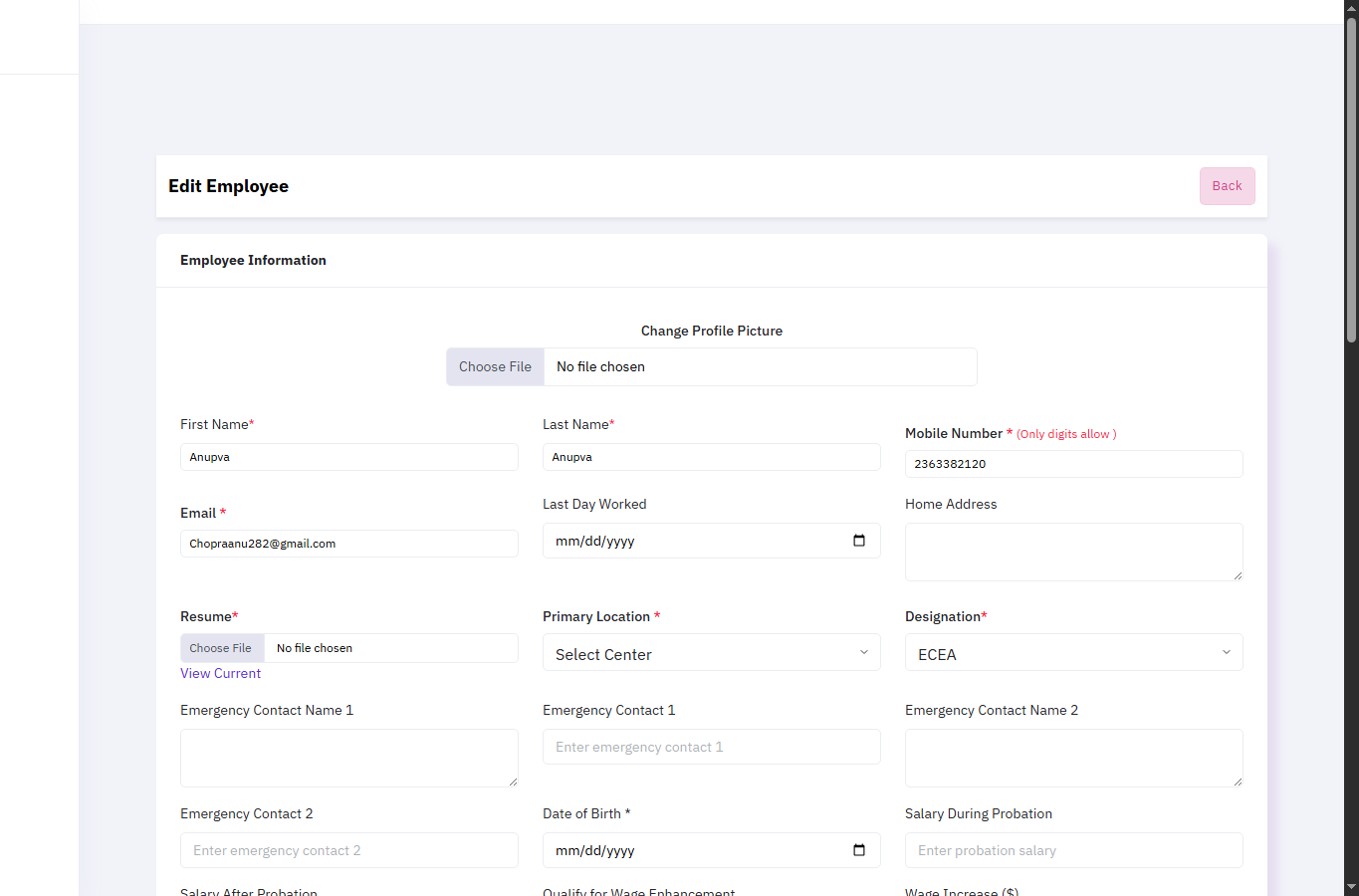
Employee Edit screen after login
Forgot Password
Use this when the employee cannot remember the password.
- Open Forgot Password.
- Enter the registered employee email.
- Click Send verification code.
- Check the employee email inbox for the code.
- Enter the code on the reset page and set a new password.
- Go back to Employee Login and login again.
Verification code expires in 10 minutes.
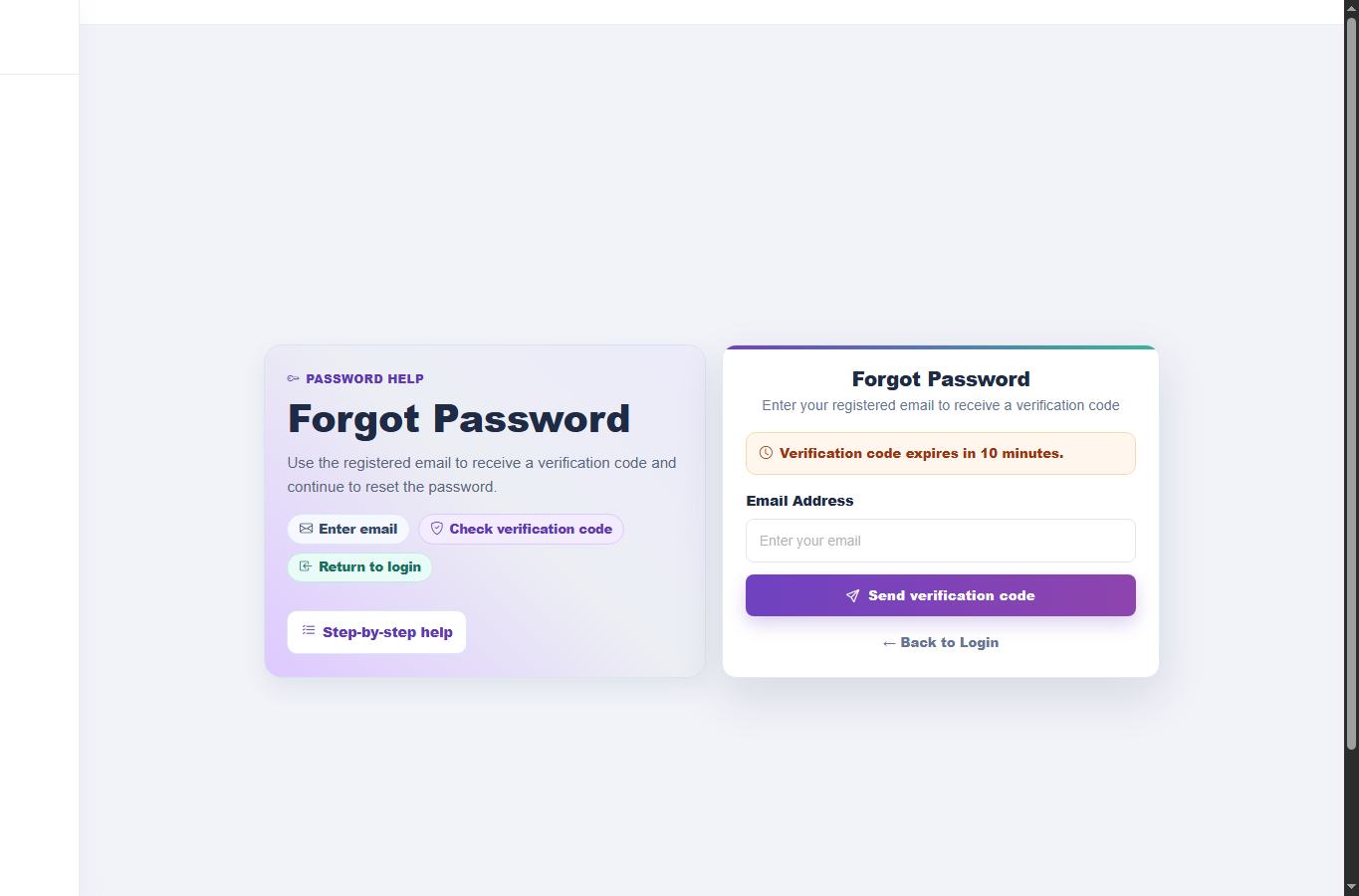
Forgot Password screen
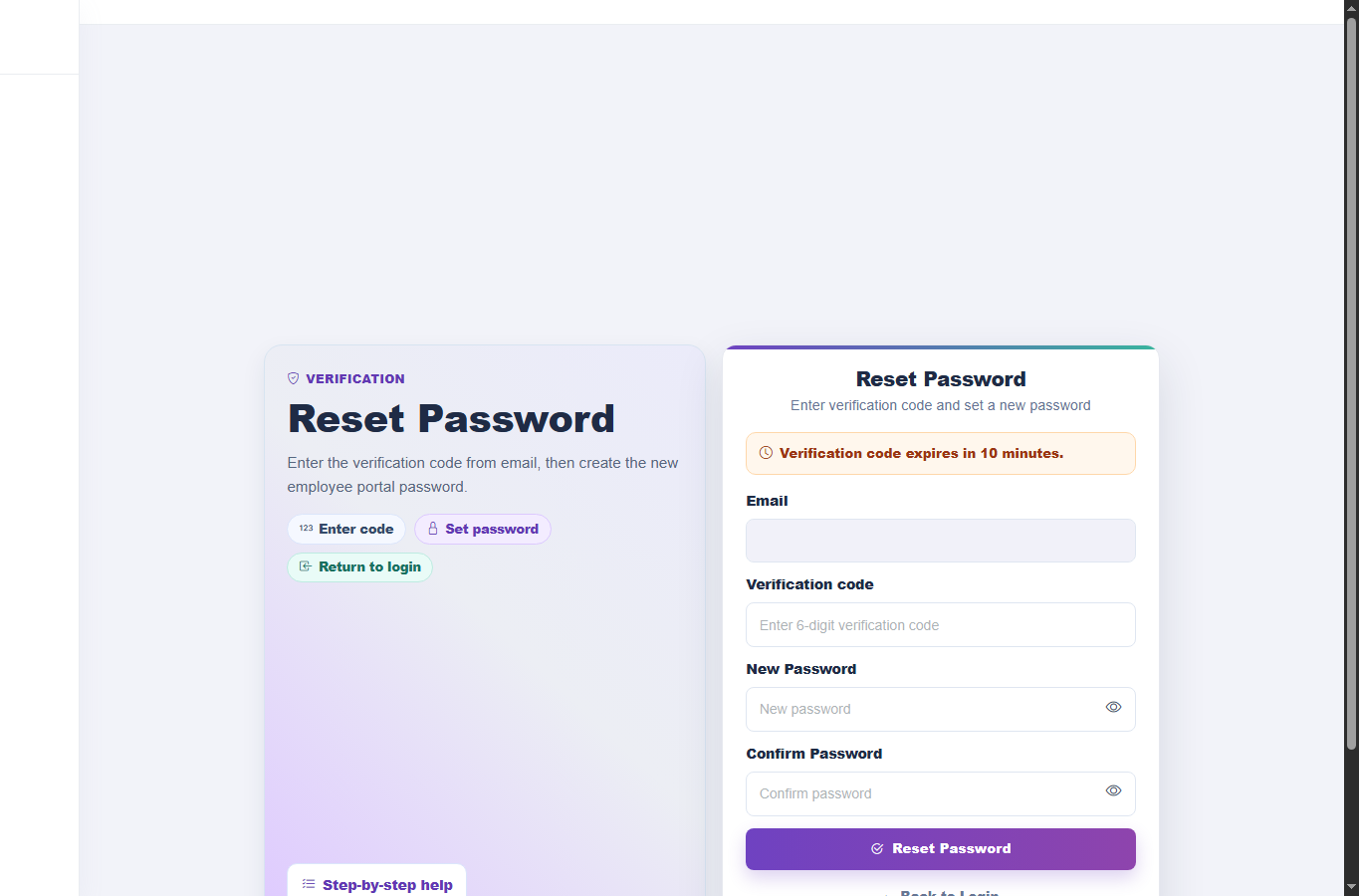
Reset Password screen
Create Employee
Use this when a new employee needs a login account.
- Open Create Employee.
- Enter first name and last name.
- Enter the employee email.
- Set the employee password.
- Click Continue.
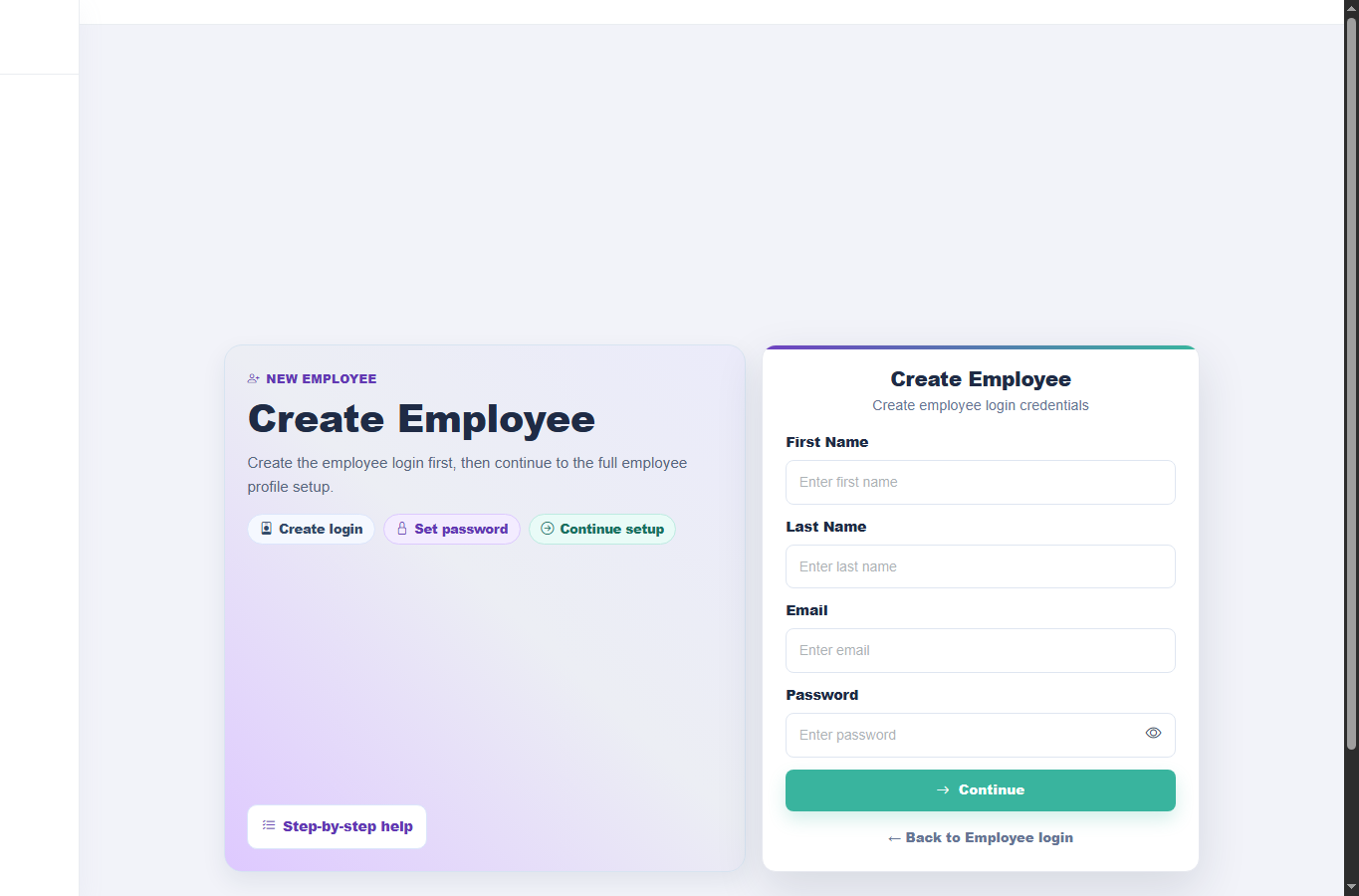
Create Employee screen